by Bob from bobsloan.com Many times we have incorporated our client’s PowerPoint slides into their video and DVD productions. Because computer displays and television displays are different, keeping a few things in mind will be of help to both of us. PowerPoint presentations are optimized for computers. DVDs are optimized for television. There are a number of differences between high-resolution output for computers and low-resolution output for television. Basically, computer resolution is far greater than television’s resolution of 720 x 486 pixels (NTSC). Also, normal televisions at a minimum crop as much as 10% from around the edge (5% from each edge), resulting in a number of consequences when incorporating PowerPoint images into your video production and then to DVD. Keeping the following guidelines in mind when designing your PowerPoint presentation will help insure a good DVD experience as well. These are as follows • Try to use 30 pt fonts or higher as small text may get lost on video. • Use sans serif (e.g. Arial, Helvetica) bold fonts. • Use no more than 4 or 5 lines of text per slide. • Avoid the color red, use darker colors and greens and blues. • Keep your graphics simple. • Provide at least a 15% border around the edge. We realize that these recommendations may seem limiting to you for your live presentation but it helps to be aware of this. In addition, audiences basically prefer simpler graphics. Too much information can cause them to disassociate altogether with the slide. These are related… 5 methods for you to play PowerPoint on DVD/TV
5 ways to convert PowerPoint to Video
Wednesday, December 17, 2008
How to Best Prepare PowerPoint Slides for Video & DVD Production

Friday, December 12, 2008
Photo DVD- Preserve your Christmas Memories by Creating Photo DVD with PowerPoint
Finally after some busy months, it’s time for Christmas holiday. What is your plan for this holiday? Maybe you should take part in the party for companies, families and friends. Maybe you decide to carry out your traveling plan for this year. And, if you spend this holiday at home, you may have fun with your family members when having dinner or decorating the Christmas tree. Do you want to preserve these happy memories? Here is the way to preserve your happy time with PowerPoint, DVD discs and your Christmas photos.
Step 1: Making a PowerPoint photo album
One of the most fun features available in PowerPoint 2007 is creating a photo album. In the Christmas season, you may take lots of wonderful photos and a great way of organizing and share them with people is by creating photo albums. In this tutorial, I will show you the basics of creating a photo album in PowerPoint 2007.
First, try to keep your pictures in a picture folder to make it easy to be found. Open your PowerPoint, go to Insert>Photo Album and select the pictures in the folder then insert them into the PowerPoint photo album.
Next, go to the bottom of the pop up window box, and select a layout for your pictures –You can choose to put one picture or several pictures per slide.
While in the Photo Album, if you want to add text to the pictures you can do that by clicking the “New Text Box” button right under “Insert Text” sign.
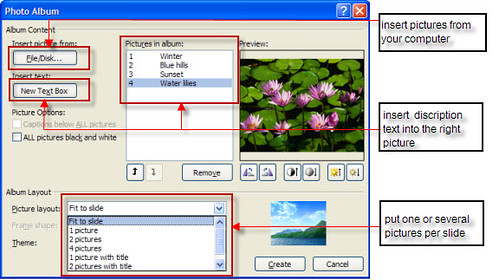
Click the Create button, Ok, you have just created a photo album. Then you can add music or animations to your pictures.
Step2: Making a Photo DVD, burning your PowerPoint album to DVD
After the Christmas holiday, there are always a lot of things memorable. If there are 100 pictures in your PowerPoint photo album, it may take you 200M disk space, and if you want to email it to others, it is too large to be enclosed. If you send this photo album to your mother or grandmother, they may want to view this PowerPoint album on TV rather than view it on their computer. Burning PowerPoint to DVD can solve these problems. After burning PowerPoint to DVD, you can view the PowerPoint on TV with a DVD player and you will be surprised to find that all your sound and animation in the PowerPoint photo album are retained, most importantly, you can make DVD menu for your PowerPoint photo album.
Here are 5 ways to convert PowerPoint to CD/DVD
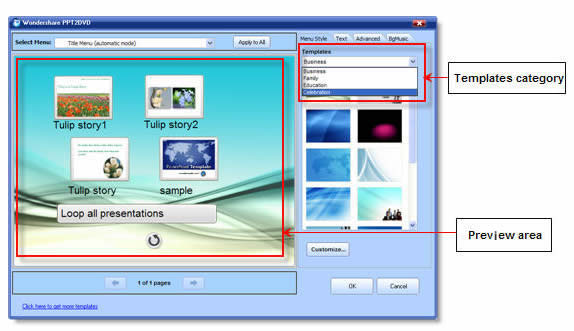
Step3: Sending the CD/DVDs to others as Christmas gift
If you are a party organizer, surprise your party members by sending them the photo DVD. Members can also send the photo DVD to the organizer for his/her wonderful party. And if you are living far from your parents, sending the photo DVD to them and telling them that you are happy and growing. You may have many thought that why you should send the photo DVD to others.
Burning your PowerPoint photo album to DVD is just one tip for your Christmas holiday. Hope you have a merry Christmas with shopping, Christmas gifts, Santa and your friends.
Want to learn more? These are related…
PowerPoint to AVI Play PowerPoint on YouTube, Pocket PC and Blackberry
PowerPoint to WMV Play PowerPoint on YouTube, Pocket PC, Blackberry and Zune
Free Christmas PowerPoint templates
Sunday, November 30, 2008
How to convert PowerPoint to FLV video
FLV, referred to as Flash video, is a file format used to deliver video over the Internet using Adobe Flash Player version 6-10. It is viewable on most operating systems via the widely available Adobe Flash Player and web browser plug-in. Most of the player like MPlayer, VLC media player, QuickTime or any player which uses DirectShow filters can play the FLV file.
Because the FLV file is small and can be convenient delivery on the Internet, it has become the mainstream video format on the Internet nowadays. The video on YouTube, MySpace and Google video are FLV videos. Many PowerPoint users want to embed FLV video into PowerPoint and some of them want to convert PowerPoint files to FLV format for easily sharing their fun on the web. Now, there is the way for converting PowerPoint to FLV format and sharing PowerPoint on web.
Learn how to embed FLV video into PowerPoint: http://www.ppt-to-dvd.com/blog/2008/11/21/youtube-in-powerpoint-how-to-insert-flv-video-into-powerpoint/
Step 2, launch the PPT to Video and import the PowerPoint presentations into the program, you can import 12 presentations at a time.

Step 3, choose the right output format FLV then start the converting process.

After the converting, get the FLV file from the output folder then you can embed it on the website to share your ideas. Just have fun with converting PowerPoint to FLV.
Saturday, November 22, 2008
Insert YouTube video into PowerPoint
--How to insert FLV video into PowerPoint
YouTube, well-known to all, is the most famous video sharing website in the world. Every time you open the YouTube, you may find lots of video which are exciting, interesting and intellective. When create a PowerPoint presentation for teaching, business and family use, you may want to insert a YouTube video into your PowerPoint presentation to make it more vivid, but as we know, YouTube video is the FLV format and we cannot insert YouTube video into PowerPoint presentation directly like a movie. How can we insert YouTube video into PowerPoint?
There are many ways for you to insert the YouTube video into PowerPoint. Here I just list 3 ways for those who are using Windows and Mac.
For Windows User
The first way is connect the YouTube video to the PowerPoint with internet connected. Follow the steps to embed the YouTube video into PowerPoint.
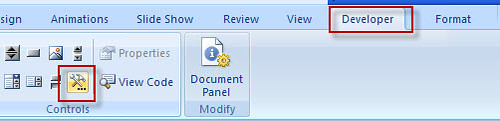
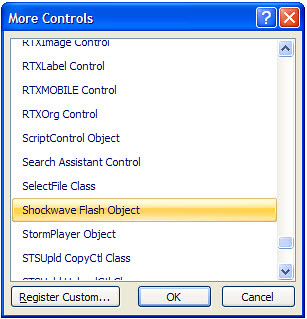
Open the PowerPoint, find the developer tab, click more controls button, then there will be a dialog appeared. If you cannot find the developer menu, it is easy. Just click the office button, PowerPoint options, and select Show Developer tab in the Ribbon then the developer tab will appear in the ribbon.
In this dialog, choose Shockwave Flash Object then OK.
Draw a box in the slide which you want to insert the YouTube video in, then right click the mouse, choose properties then the dialog is showing as below:
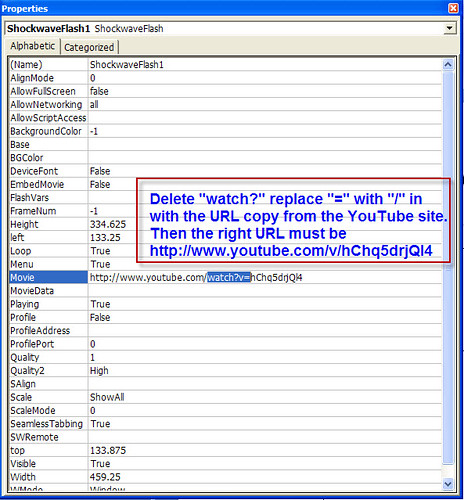
Copy the YouTube URL and paste it in Movie blank. Please remember that you should delete “watch?” and replace “=” with “/”in. Close the dialog, click F5 and you can view the YouTube video in PowerPoint now.
Remember, only have a live internet connection you can play your YouTube video in PowerPoint.
Sometimes there maybe some restriction that made us cannot connect the internet. In that case we should download the YouTube video to our computer, convert the YouTube video file (FLV file) to other format like MPEG, AVI, WMV, etc that PowerPoint can accept. Thus we no longer depend on the live internet connection. OK, here, I want to tell you the second way to do this.
Before you can download a video, you must install a capture/converter program. Here's how:
Open your Firefox web browser, choose add-on in the tools menu. Click on the get add-ons tab, in the search box type media converter, this tool is totally free. Install the media converter then restart Firefox.
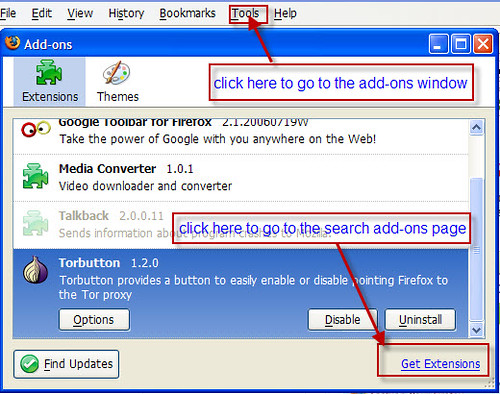
OK, now you'll see a new icon that looks like a bird next to the web address field.
From now on, all you have to do is go to the page which you can view the YouTube video, click the media converter icon (the bird icon), choose the right format you want to convert, click next, OK, the video is successfully downloaded and converted.

I think insert a common video into PowerPoint will not be difficult for you. If you do not know how, learn how to insert video into PowerPoint.
Another tool, YouTube downloader, can easily download and convert the YouTube video. You just need to paste the YouTube video URL into the YouTube downloader and select the output video format, everything is OK.
For Mac user
The two methods above are for the Windows PC, now, how to insert YouTube video into PowerPoint on Mac with PowerPoint 2008?
Download the YouTube video and convert it to the right format with Firefox and Media converter first. In PowerPoint, turn on the Movie toolbar by using the VIEW menu. From the VIEW menu choose the submenu TOOLBARS and then MOVIE.
The first button on the toolbar is INSERT MOVIE. Click it.
Select the movie in the dialog box, then click the CHOOSE button.
Upload PowerPoint to YouTube is also possible. You may find more information from here. Just choose the method which is most suitable for you, have fun with PowerPoint and YouTube!
Sunday, November 16, 2008
FreeThanksgiving Day PowerPoint Templates Added
Thanksgiving Day is just coming; how much do you know about this day? Who is the person you want to say thanks most? Maybe these days you are busy on preparing thanksgiving gift for your friends, family members and celebrating the coming cold weather.
Templates screenshot:


You may find more Thanksgiving Day PowerPoint templates from here:
http://www.poweredtemplates.com/02821/0/index.htmlhttp://www.indezine.com/powerpoint/templates/freetemplates.html
http://www.pppst.com/templates.html
Monday, November 10, 2008
How to promote your business on Xmas holiday with PPT2DVD?
Anyhow, as a business man, Christmas is a good time for your promotion. In this period, people often tend to get some new ideas on how to make their company business go better and better. How to promote your business effectively with the low costs? Just take the advantages of some regular tools you often use, promote your business by yourselves but not the advertisement company. Here I am going to tell you something which can improve your company business like promotion with Wondershare PPT2DVD.
Frequently, PowerPoint is used to create interactive PC presentations for training, demonstration, product show, service and some other company presentation purposes. Love it or not, Microsoft PowerPoint is widely accepted and used, epically in business. Wondershare PPT2DVD is a professional tool that can convert PowerPoint to video and DVD, then you can view your PowerPoint on website and DVD player. Using the joint of PowerPoint and PPT2DVD can be the considered way.
What can we do to promote your business on Christmas season with Wondershare PPT2DVD?
Surly your company needs AD. Your company wants to be more famous, set up a good reputation both in customer and marketing! You also need to publicize your newest products and promotion policy so that more people will learn more about your company and product. After making a PowerPoint presentation, it is wise to burn your PowerPoint presentations to DVD disc and play on TV which we call it DVD Presentation! you can do the same thing when any other organizations or individuals come to your company to have a visit, besides, you can also take your DVD presentations to other place or use in any other activities(such as the company party)! The most advantage of the DVD presentation is that the presentation can be played automatically and very convenient for delivering, also, it do not reliant on a computer with PowerPoint installed.
With PPT2DVD, what you can do?
Trade show, in Christmas days, tens of thousands of people crowed in the street to purchase large mount of goods, so it is a good chance for you to show your product. After converting PowerPoint to DVD, you can play your trade show on outdoor digital signage, on the DVD machines in the market hall and so on.
Online video advertisement, a major result of online advertising is information and content that is not limited by geography or time. And the data from BBS shows that in the online world Christmas shopping is booming, so you cannot miss the chance to make a video advertisement. Create a presentation with PowerPoint, convert it to video with PPT2DVD, and upload to the website to show your business online.
Company profile, as a business man you can only be in one place at a time. Your company profile, however, can be in many places, helping you influence potential and existing customers. In the Christmas days, send the customer your company profile and introduce the new promotion policy is a good idea, a DVD profile shows your professional and you can make it easily by PowerPoint and PPT2DVD! The sample of the company profile make by PowerPoint and PPT2DVD.
When you look at the cost after you finished the trade show, video advertisement and company profile, it may surprise you much! From here, just get ready for the increased sales during the Christmas period, and finding more customers in the Christmas days.
Learn more about Wondershare PPT2DVD:
Download Wondershare PPT2DVD:
Tuesday, October 21, 2008
5 Ways to Convert PowerPoint to Video
5 ways for you to convert your PowerPoint to video
1.Using Wondershare PPT to Video to convert PowerPoint to video with animations, transitions, sounds, video clips retained in the output.
2.Using windows movie maker to create a PowerPoint video if there are no dynamic elements in your computer.
3.Log in the slideshare.com and create a PowerPoint video online.
4.Using some screen recorder such as Camtasia to record your PowerPoint.
5.Make QuickTime movie on Mac.
Now there are the details of these 5 methods.
Part 1, using Wondershare PPT to Video to convert PowerPoint to video.
Wondershare PPT to Video can convert your PowerPoint presentations to WMV, MPEG, AVI, MP4, MOV and 3GP format. After the conversion, you can upload your PowerPoint to website like YouTube, your blog, Google video. You can also view your PowerPoint on iPhone
, iPod, mobile phone and so on.
Follow the steps to convert your PowerPoint to video with Wondershare PPT to Video
Step 1, download PPT to Video and install it on your computer.
Step 2, launch the program, import your presentation to the program, (you can import 12 presentations at a time). Select the right format you need and start the conversion process.
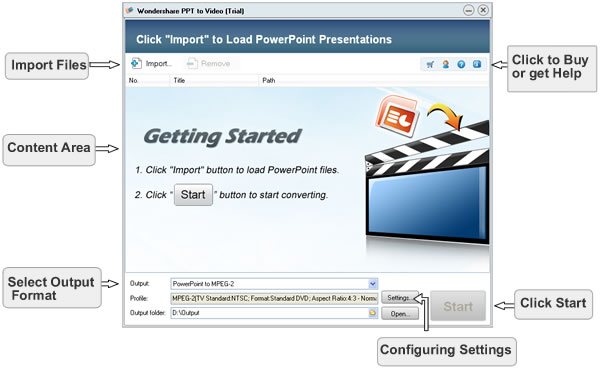
Step 3, upload your presentations to the website or put it to your mobile sets.
Part 2, using Windows Movie Maker to create a PowerPoint video.
If you use Windows XP or vista, it’s free and it comes installed on your computer, if you don’t have this program, you can download it from Microsoft.com. If your presentation is created with text and pictures, Windows Movie Maker is the best choice for you.
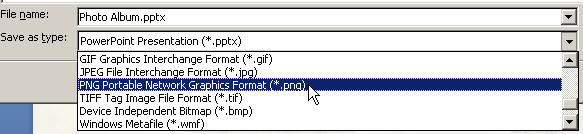
Step 1, save your to PNG or JPG format. Just click the office button, save as, other formats, in the save as type drop-box, select PNG or JPG format.
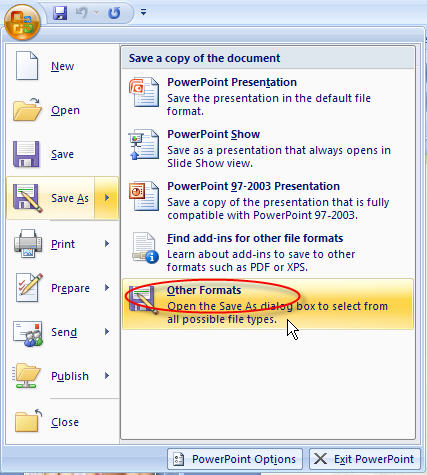
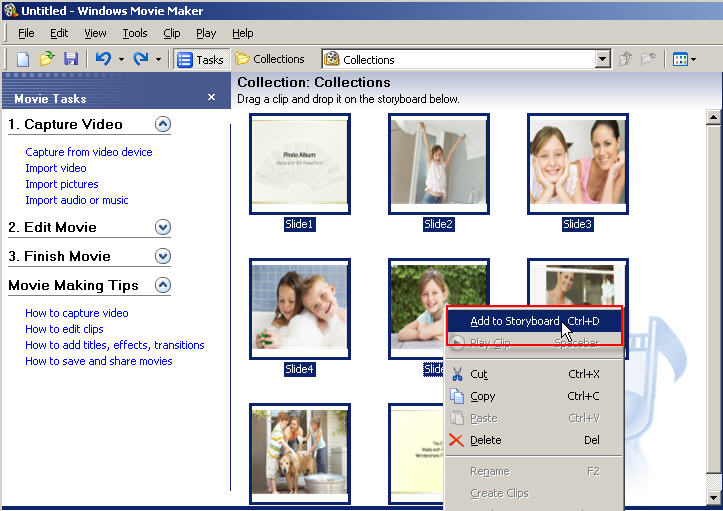
Step 2, import pictures into Windows Movie Maker.
Step 3, select all the imported images and add them to Storyboard.
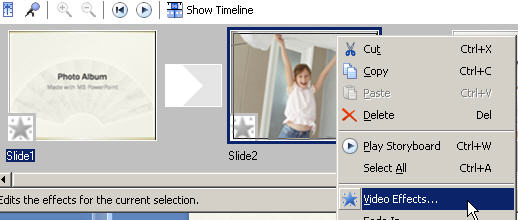
Step 4, add video effects to the slides if you want to make your video more lively.
Step 5, save the slide show as movie file.
The sounds, animations and transitions original in the PowerPoint will be lost totally. Maybe you need more information for learning how to use Windows Movie Maker, here is a nice guide for you. http://presentationsoft.about.com/od/moviemaker/a/mov_mak_beg.htm
Part 3, create a PowerPoint video online in sildeshare.net
Slideshare.net http://www.slideshare.net/ is a famous presentation sharing website. You can upload your presentation to this site then start the conversion process, after this, download your video to your computer. This is the easiest way to create a PowerPoint video, but you cannot add animations or sound in your PowerPoint.
Part 4, using Comtasia to record you presentation and create a PowerPoint video
Download Comtasia http://www.techsmith.com and install it on your computer then follow the steps.
Step 1, save your PPT file as PPS file
Step 2, Set Camtasia studio to record the whole screen
Step 3, Play your PowerPoint PPS file and Press "F9" to start recording the screen
Step 4, when you reach your last blank slide, Press F10 to tell Camtasia Recorder to stop recording. You will be prompted to save the captured slideshow, so choose a directory and enter a filename.
Step 5, save your capture in AVI format
Part 5, Make QuickTime movie on Mac
In PowerPoint, export your presentation as a QuickTime movie "PowerPoint Movie", click file>> make movie. You can save your PowerPoint file to MOV file. The effect of the output is similar with Slideshare. It cannot retain the sounds and animations original in your presentations.
If you are using keynote, just export your presentation to QuickTime file directly.
Advantages and disadvantages:
If you want to retain the dynamic elements, definitely, PPT to Video is your choice. Windows Movie Maker and Slideshare.com can be conceded for those people who want to convert the presentation only include text and images in. Camtasia can record the screen and sound when your play your PowerPoint, but it is pay software and the price is $299.95. For Mac users, you can use the third and fifth method, I don’t know if there are some other programs which can convert PowerPoint to video with animations and sounds.
Internet gives us a convenient platform to share our knowledge worldwide, and video has become more and more pop in the internet. I hope you can use these methods for sharing your presentation easily.
Do you want to see more? This is related...
5 methods to burn your PowerPoint on DVD


