Monday, April 7, 2008

The principle of creating attractive PowerPoint


For years, I have been working for helping people solve PowerPoint problems, specially creating DVD or video from PowerPoint. Lots of people get puzzled on the question "How to create a presentation attractive". And most of them have difficulties of finding out resources to "fill" their presentations. They think the more information contained in the presentation the more attractive the presentation is.

Anyway, PowerPoint is Not a Game of "Let's See Who Can Put More onto a Slide." I know it kills you a lot of time to prepare for your presentations. To do a stunning presentation you have to inquire knowledge on the internet which is related to your topic, but, we should follow the principle which is very near and dear to us, that is, don't let the slides tell the story, let the presenter tell the story! The slides are just your backup and your outline.

Maybe there is a rift in the age groups of the users. Those who are beginning with PowerPoint just see it as a tool that can show something by a projector. Maybe someone will think cramming 10 or more lines of text or some colorful images onto a slide can tell more to the audience, if so, why not use Microsoft word? We hope we can "grow up" with PowerPoint.

Please remember: "There's nothing deadlier in a presentation than having a lot of text on a slide and reading every word…"

Sunday, April 6, 2008

Make Your PowerPoint Presentations as Mobile as You with Burning PowerPoint to DVD

I saw an article called “Copy Your PowerPoint Slideshow to DVD” on the DVDshrinknow blog, the author said, “However, transporting the hardware to show your slides can be a problem, unless you have the capability to copy the PowerPoint slideshow to DVD. Now your presentation can be as mobile as you”.

Do you even image that you can take your presentation with DVD? Do you also think burn PowerPoint to DVD is an impossible thing? And what is the advantage of burning PowerPoint to DVD?

I do not want to offend the author, but I still post a topic Copy Your PowerPoint Slideshow to DVD on their forum, what I want to say is, it is not a problem with transporting the hardware to show your slides, you probably has heard some word like PowerPoint DVD, pps to DVD, burn PowerPoint to DVD and so on. You can just do the job with one click with the software PPT2DVD.

As a business man, PowerPoint is probably the essential tool to present vital information to your company, your shareholders, or whoever needs the information. The slides encourage conciseness with professionalism. As a teacher, it is a great way for your to progress smoothly through your lecture. While you are talking, the notes came directly from the information on the slides. As a student, when you design your project, it is both visually appealing and informative to create a PowerPoint……

Since PowerPoint is an excellent tool for students, teachers and businessmen, we do can not work without it. But, to take your laptop everywhere to show your slideshow is a troublesome thing. Just imagining how much easier it will be to save a PowerPoint slideshow to DVD. Now, you can slip the DVD in a briefcase, a backpack, or a pocket, and take your presentation with you.

PPT2DVD is just the software that can burn your PowerPoint slideshow onto DVD. You can show your presentations on DVD player with a DVD remote control. Follow the 4 steps below,

1. Import the PowerPoint files

2. Configure settings or use the defaults and skip to the next step

3. Create professional look DVD menus with built-in templates

4. Start the burning process

Just slip the DVD in a briefcase, a backpack, or a pocket, and take your presentation with you and Make Your PowerPoint Presentations as Mobile as You with Burning PowerPoint to DVD.

Friday, February 22, 2008

Preserver PowerPoint Presentations in DVD or Video?

Burning PowerPoint to DVD is a good idea for preserving presentations or extending the use of PowerPoint. You can either burn PowerPoint files to DVD disc directly, or convert it to video or DVD and then burn them to DVD disc. Converting PPT to DVD is different from converting PPT to video. To know the benefits of converting PowerPoint presentation to DVD comparing with converting to video, the best way is to understand the DVD structure.

The DVD menu matters

When we play a video DVD with DVD machine, in most conditions, we see a main menu first, which allows us to decide how the movie will be played: Select subtitle language, choose a conversation language, start from a specific chapter, etc. While playback, we can use navigation buttons on the remote control to rewind or skip through movies. Also, we can back to title menu or main menu to play another movie or chapter. The menu function is not supported by common video files.  Let’s back to PowerPoint presentation. When we slide show with PowerPoint, we can advance presentation animation by animation and slide by slide, moreover we can build internal hyperlinks to go to a specific slide and turn back. With DVD menu, all these practical features will be inherited.  But a raw video has no way to retain them.

Understanding DVD structure

What does a DVD disc contain? Actually, if you open a movie DVD disc on your computer, you should see two folders: AUDIO_TS and VIDEO_TS. AUDIO_TS is created for storing DVD Audios (for audio DVD only), while the VIDEO_TS contains all data for the movie. Video DVD is what we concerned in this article, so let’s take a look at the data contained in VIDEO_TS directory.

Usually, we should find three kinds of files under the VIDEO_TS: .BUP, .IFO and .VOB. IFO file is the content of the DVD. It tells the player where a chapter starts, where a certain audio or subtitle stream is located, etc. BUP files are just backup files of the IFOs. If the IFO files cannot be read, the player will read the BUP files instead. Next is the VOB file, it is a container that stores video stream, audio stream, subtitles and DVD menu. Video is MPEG-2, audio can be AC-3, Linear PCM, Mpeg 2 multichannel or MPEG1 layer2 two channel audio. It is why the DVD is encoded in MPEG-2 but not a MPEG-2 video.

Things about PowerPoint

Now, let’s back to PowerPoint. If we burn a PowerPoint presentation to DVD disc in manual mode, we can use DVD remote control to navigate the converted video just like we doing so with PowerPoint. A professional PPT to DVD conversion tool should empower users to create and designed DVD menu.  The following illustration shows the title menu of a DVD, which is created by Wondershare PPT2DVD.

http://farm4.static.flickr.com/3213/2282676065_3a6e33bfea.jpg

Tools of burning PowerPoint presentation to DVD

There are many tools out there that are able to convert PowerPoint to DVD. The most famous one is Camtasia produced by Tech Smith, which is the leader in screen capturing field. Converting PPT to DVD is only a special function of the software. It may produce DVD video, but the menu design feature is not as good as Wondershare PPT2DVD, which is the first professional tool in the world that is specialized in converting PPT to DVD. It retains most PowerPoint interactive features to the converted DVD video. Besides, it provides a way to burn PowerPoint presentations to HD DVD, like Blu-ray DVD.


Tuesday, January 1, 2008

Wondershare PPT to Video 4.6 Released

New!   Wondershare PPT to Video 4.6.0 Released
Dec. 28th, 2007 , Wondershare, the global award-winning provider of presentation authoring tools, today announced the release of PPT to Video 4.6,an innovative yet affordable solution to Convert PowerPoint to video format such as MPEG, AVI, MP4, WMV, MOV, 3GP with excellent quality.


What's New
1. Improved the conversion efficiency by optimizing the algorithm of encoding video;
2. Improved the output quality;
3. Support MPEG2-TS format;
4. Optimized the user interface;
 
Key Features
Retain animations, transitions, sounds and movie clips
Convert PowerPoint to video formats such as MPEG-1,MPEG-2, AVI, MP4, WMV, MOV, 3GP
Support converting PPT, PPS, PPTX, PPTM to MPEG, AVI, MP4, WMV, MOV, 3GP.
Easy step-by-step guide conversion
Superior batch conversion: up to 9 PowerPoint files can be converted at a time
 
Screenshots
Click to enlarge

Intuitive and sleek user interface
  • Intuitive and sleek user interface, very easy-to-use
  • Up to 9 PowerPoint files can be converted at a time
  • Step by step guide mode, no need any professional skill
Click to enlarge
Multiple output formats with flexible settings
  • File formats corresponding to use
  • Customizable video display resolution, frame rate, bit rate and encoder
  • Customizable audio sample rate, bit rate and encoder
Click to enlarge
Converting
  • Superior high conversion speed
  • Optional to shut down computer automatically when conversion finished

Main benefits of converting PowerPoint to video
Watch PowerPoint presentation without MS PowerPoint®
Watch PowerPoint presentation with Windows Media Player

Reduce PowerPoint file size by 90% to easily email or upload to web
Easily email to others with acceptable file size
See Sample:
Original file (size: 20M) After conversion (size: 1M)

Create video with voiceovers and share by iTunes, blog or upload to YouTube
Podcast PowerPoint slide show to iTunes or your own blog for sharing
Show your PowerPoint presentations on YouTube, Google Video, etc. 

Review PowerPoint presentations on iPod/iPhone/Pocket PC
Review your pre-presentation work even when you are on vacation without laptop
Offer the audience a reminder of the main points of the presentation
Fit in your pocket and can be read while waiting for a bus or eating lunch in a park

Watch PowerPoint presentation on TV
Create mp4 video and play on TV via Apple TV
Burn the video from PowerPoint to DVD to play on TV via DVD Player (Compare with PPT2DVD)


Pricing and Availability:

Price: $49.95
Free Trial:
http://www.ppt-to-dvd.com/download/powerpoint-to-video-download.html
Learn more: http://www.ppt-to-dvd.com/ppt-to-video-overview.html

System Requirements:
Microsoft Windows 2000/XP/2003/Vista
Microsoft PowerPoint 2000/2002/2003/2007

Thursday, December 27, 2007

How to Convert a corel presentation to a dvd file

Question:
How to Convert a corel presentation to a dvd file?
I have been told that you can use a powerpoint to dvd program to convert but need to know if it will work for corel presentations as well? Any advice? I created a slideshow in corel 7 presentations and would like to play it on a tv through a dvd player! HELP!

Solution:
Yes, you can burn a corel presentation to DVD. Just follow below steps
1. You should make sure that have PowerPoint installed on your computer
2. Then save the corel presentation to a PowerPoint format ppt or pptx format.
Here is the guide about how to do it: http://support.microsoft.com/kb/826830
3. Burn your PowerPoint presentation to DVD with Wondershare PPT2DVD from http://www.ppt-to-dvd.com

Any questions, please leave a comment or visit http://www.ppt-to-dvd.com/forum to make a post.

Keywords: corel presentation to dvd, burn corel presentation to dvd, convert corel presentation to dvd, cmx to dvd

Tuesday, December 25, 2007

Wondershare PPT2DVD 4.6 Released

Distribute and share your PowerPoint presentations on DVD
Wondershare PPT2DVD 4.6 Released


Dec. 25th, 2007 � Wondershare, the global award-winning provider of presentation authoring tools, today announced the release of PPT2DVD 4.6,an innovative yet affordable solution to bring your PowerPoint presentation out of the computer onto DVDs and show it on TV.

Have this ever happened to you? You need to play a PowerPoint presentation at certain places but there is no PC available but only a DVD player. The presentation may be a product presentation, company presentation, trade mark display or educational presentations. In a word, it should be very important that you find out a solution to play your presentation without computers.


Another case is that you've created a compelling PowerPoint presentation with sound tracks and movie clips embedded, but have no choices but attach the huge package in the email and send to others for sharing, or carry your heavy box wherever you go. And what if the receipts or audience do not have a PC even have such access, and if they do not have the right version of PowerPoint viewer to play presentation correctly and if the attached media files are lost during the delivery? Needless to say, the efforts you spent on the presentations return nothing to you but only complaints, pities, and lost opportunities.

Wondershare PPT2DVD is the first and so far the top innovative program that brings the idea to convert PowerPoint presentations to DVD which is designed to give an end to the above troublesome cases.

As one of PPT2DVD users said: "THIS SOFTWARE IS AWESOME, you can burn directly to a Standard CD which or DVD, or create an ISO file, when 1st put in your DVD player you have the options to manually go through the slides or let it do it automatically, this software will be a great plus for business and education, hooking $1500 projectors to a computer will be a thing of the past, just use a $20 DVD player…. "

Key features of Wondershare PPT2DVD.
1. Convert PowerPoint to DVD, MiniDVD, HDTV
2. Keep original PowerPoint animations, transitions, sound tracks, movie clips and even the inner hyperlinks in the DVD movie.
3. Customize DVD menus to create a real DVD that can be controlled using a DVD remote controller.
4. Convert to WMV, AVI, MPEG (MPEG-1, MPEG-2) video.

What's new in PPT2DVD 4.6
1. Resolved some compatibility issues when working with Windows Vista.
2. Improved the output video quality.
3. Improved the conversion stability.
4. Able to produce MPEG2-TS videos for playing on DVB and ATSC.
5. Removed the presentation analyzing func


Pricing and Availability:
Price: $99.95
Free Trial:
http://www.ppt-to-dvd.com/download/powerpoint-dvd-download.php
Learn more:
http://www.ppt-to-dvd.com/ppt2dvd/overview.html

System Requirements:
Microsoft Windows 2000/XP/2003/Vista
Microsoft PowerPoint 2000/2002/2003/2007

Wednesday, December 12, 2007

5 methods to save PowerPoint onto DVD

Time and time again, friends from Allexpert.com asked me how to burn PowerPoint presentations onto DVD. 
One of them created a compelling PowerPoint photo slideshow with music and movie clips embedded, but he had no choice but attached the huge package in the email to send it to others for sharing.
Another one is a teacher. He had to make a presentation at a place where there is no computer but only a DVD Player and TV.

So it is necessary to write a comprehensive guide to help guys to burn PowerPoint onto DVD for easily distribute and share.  


This guide will show you how to convert and save PowerPoint onto DVD. It includes the following 5 sections:

  1. Use Windows movie maker to convert PowerPoint to video to burn to DVD �Free
  2. Use PPT to Video to convert PowerPoint to video to burn to DVD �$49.95
  3. Use PPT2DVD to burn PowerPoint to DVD directly � $99.95
  4. Use Camtasia Studio to record PowerPoint as video to burn to DVD �$299.95
  5. Mac users � Export PowerPoint/Keynote file to Quicktime video to burn to DVD

Part  1. Use Windows movie maker to convert PowerPoint to video to burn to DVD �Free

Step 1. Save your PowerPoint slide show as "PNG" images.


Step 2. Import the pictures to your Windows Movie Maker


Step 3. Select all the imported images and add them to Storyboard


Step 4. Add video effects to the slides (Optional)


Step 5. Save the slide show as Movie File.


Part 2. Use PPT to Video to convert PowerPoint to video to burn to DVD �$49.95

Download: http://www.ppt-to-dvd.com/ppt-to-video-overview.html

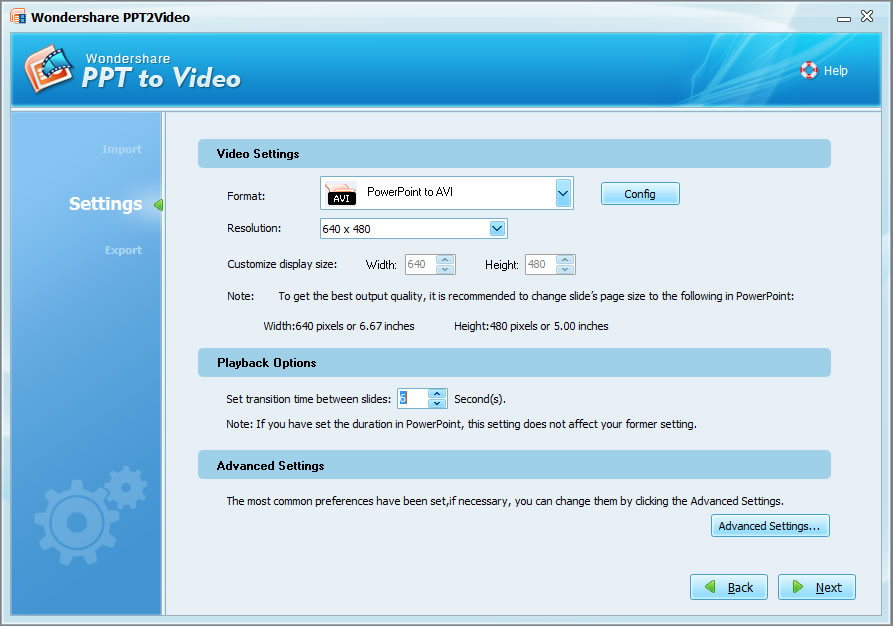
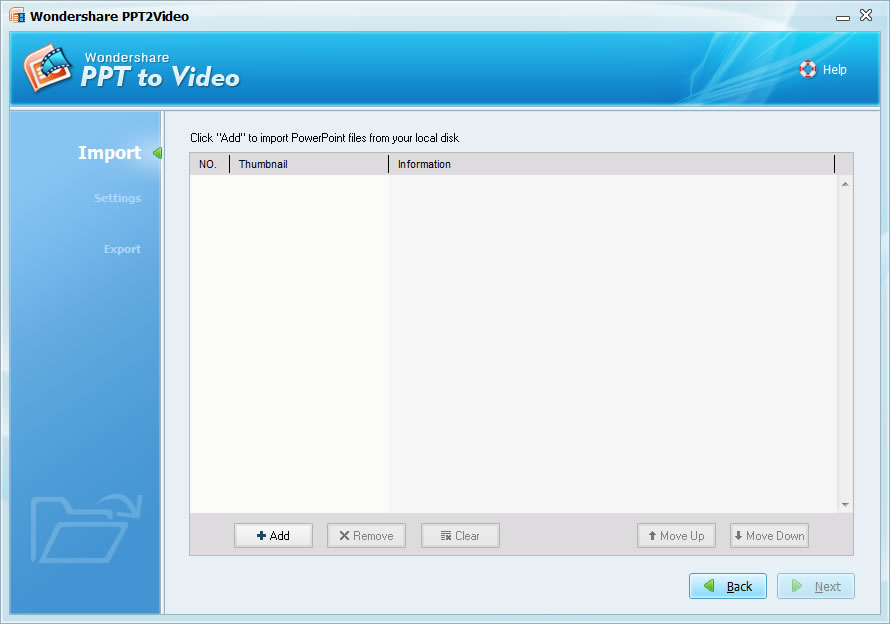
Step 1. Select "PowerPoint to MPEG-2" and Import PowerPoint files to PPT to Video

 Click to enlarge


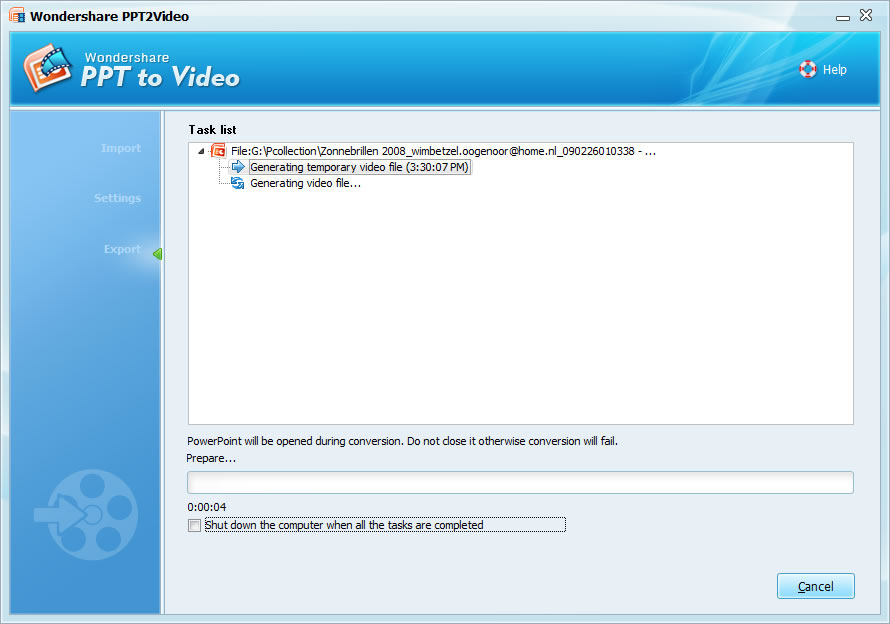
Step 2. Converting: Click " Next " until the converting starts

Step 3. Burn the converted video to DVD


Part 3. Use PPT2DVD to burn PowerPoint onto DVD directly � $99.95

Download: http://www.ppt-to-dvd.com/ppt2dvd/overview.html
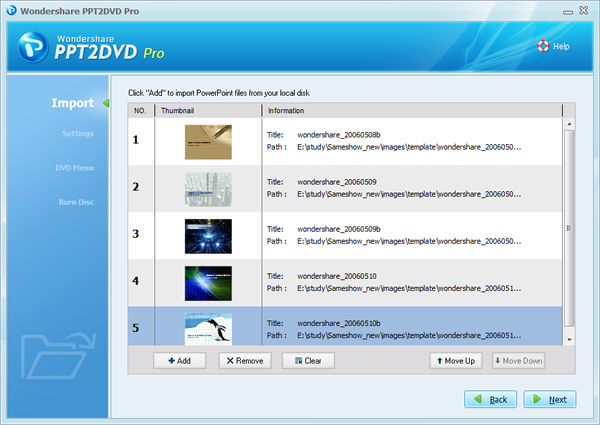
Step 1: Import: You can import up to 9 presentation files at a time.

Choose output formats

Step 2: Setting: Check the default settings and make some changes if needed

PPT2DVD Video settings

Step 3. Burn:  Burn to DVD with a DVD Burner( either PPT2DVD built-in burner or Nero)

Part 4. Use Camtasia Studio to record PowerPoint as video to burn to DVD �$299.95

Download: http://www.techsmith.com

Step 1. Set your computer display resolution as 800*600

Step 2. Save your PPT file as PPS file

Step 3. Set Camtasia studio to record the whole screen


Step 4. Play your PowerPoint PPS file and Press "F9" to start recording the screen

Step 5. When you reach your last blank slide, Press F10 to tell Camtasia Recorder to stop recording. You will be prompted to save the captured slideshow, so choose a directory and enter a filename.

Click "Save". Camtasia will save your capture as an .AVI file.
choose the Title Only layout


Step 6. Then you can burn the video to DVD with Nero or Roxio


Part 5. Mac user � Use Quick time to convert PowerPoint to video to burn to DVD


Step 1. In Powerpoint, export your presentation as a Quicktime movie "PowerPoint Movie"


If you are using keynote, just export your presentation to Quicktime file directly


Step 2. Burn the Quicktime movie to DVD with your DVD burner.


  1. Advantages and disadvantages
  2. Method 1 is free but it will lost the transitions and animations in your original PowerPoint.
  3. Method 2 is cheap and it can retain transitions and animations, but it can't create DVD menus and retain the inner hyperlinks.
  4. Method 3 has a medium price, it can burn PowerPoint to DVD with DVD Menus and retain the animations, transitions, sound and movie clips in the original PowerPoint file. (Recommended)
  5. Method 4 is fairly expensive, but it has lots of other functions such as recording the screen.
  6. Method 5 is free, but only for Mac users.


Related Blog: http://ppt2dvd.blogspot.com  http://blogs.digitalmediaonlineinc.com/powerpointtovideo/entry/20071211

Resource: http://www.ppt-to-dvd.com/blog/2007/12/11/5-methods-to-save-powerpoint-onto-dvd